

Using Preppy
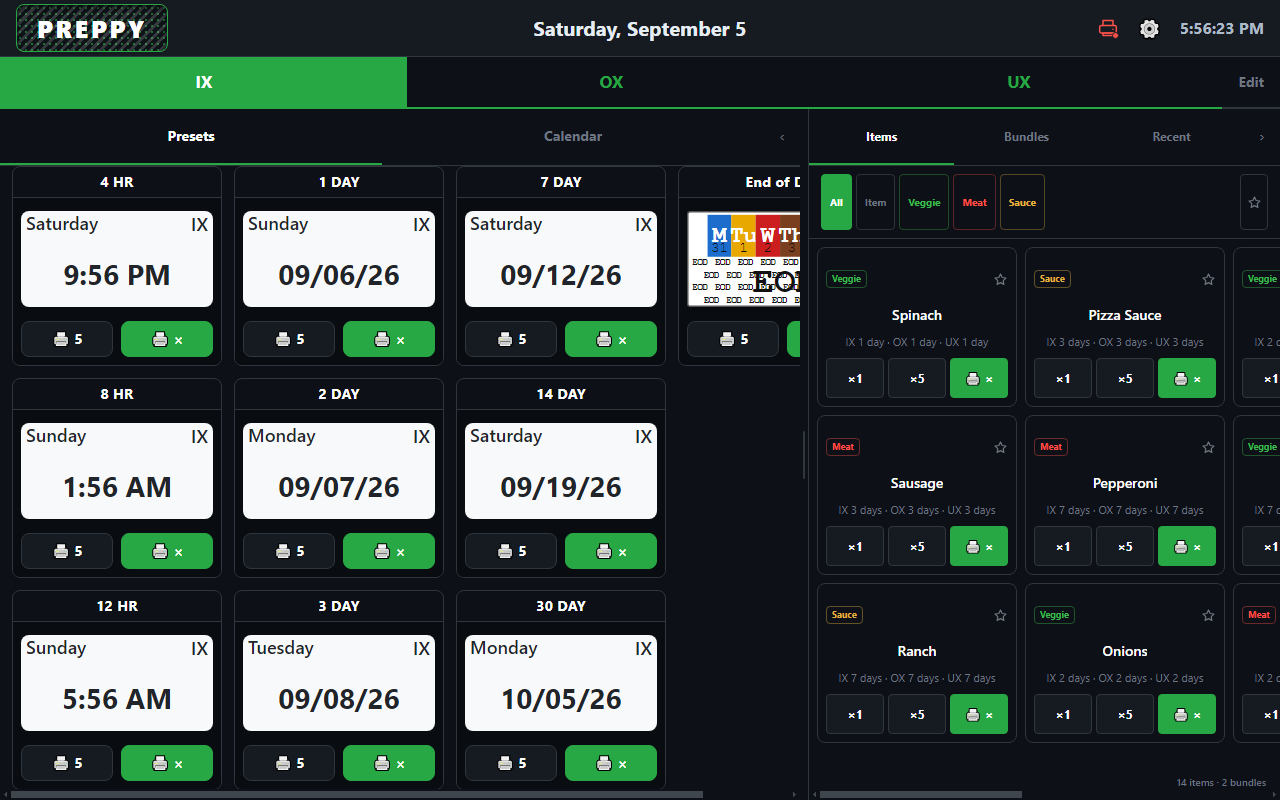
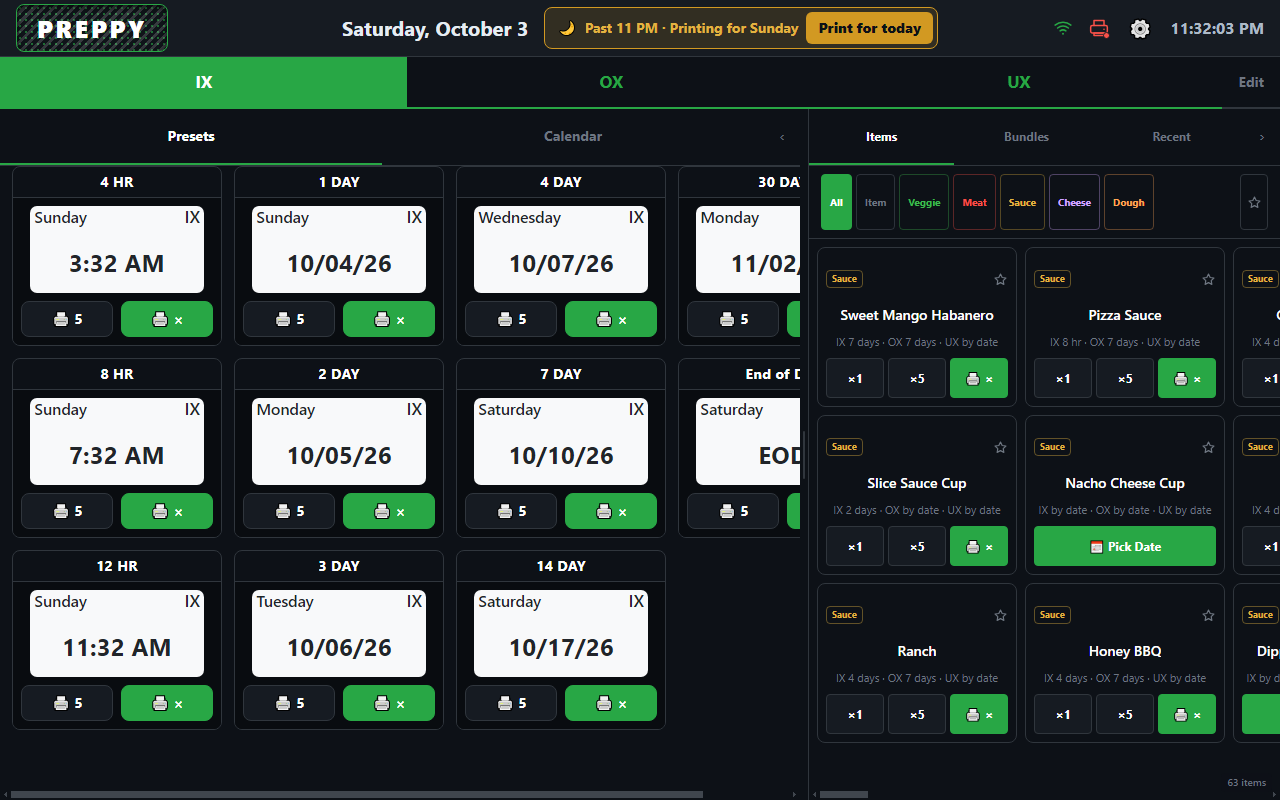
Everything the crew does day to day happens on one screen. Presets are on the left, quick items on the right, and the template bar runs across the top.
The header
Section titled “The header”- Date in the centre, so the label dates can be checked at a glance.
- Console dot: green when the tablet is connected to your PizzaBot account; amber when the trial is ending, the tablet has been offline for a week, or the licence is in grace; red when the tablet is locked to presets.
- Wi-Fi icon: tap it when the store Wi-Fi needs a sign-in or the tablet is offline. It opens the network settings.
- Printer icon: tap it to open the Printer settings.
- Settings (the gear) and the clock.
After the next-day cutoff, the header grows a chip. See Late at night below.
Templates
Section titled “Templates”The bar across the top picks the template that prints on every label:
| Template | Use it for |
|---|---|
| UX | Unopened product, as received |
| OX | Opened or prepped product |
| IX | Product in use on the line |
A quick item can carry a different shelf life for each template, so Pizza Sauce might be eight hours in use, seven days opened, and by date unopened. Tap the template first, then the item.
Presets
Section titled “Presets”Each preset card shows a live preview of the label it prints: the weekday on the left, the template on the right, and the date or time underneath. Preppy works the date out from the hold time, the date rules in Settings, and the clock.
- Tap the preview to print one.
- 🖨 5 prints five.
- 🖨 × opens the quantity page: pick the template, type a number up to 500, and tap Print.
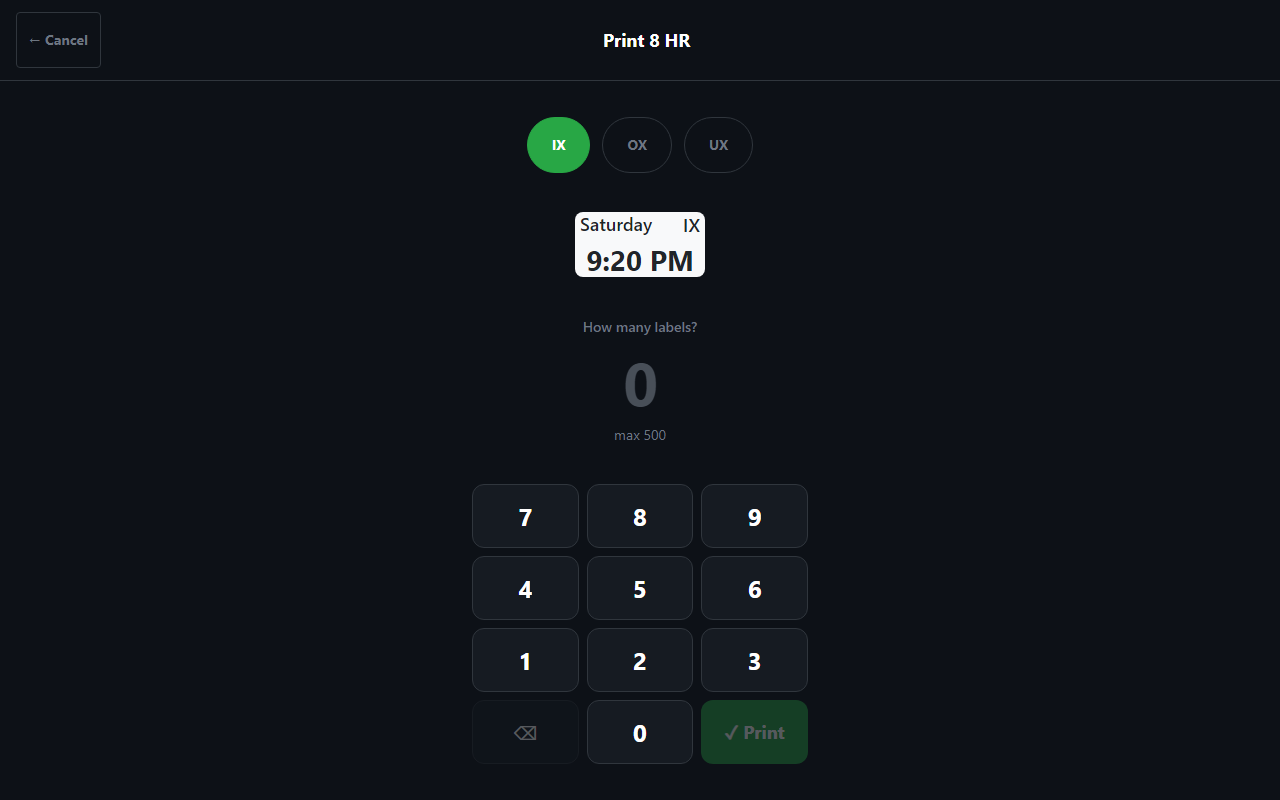
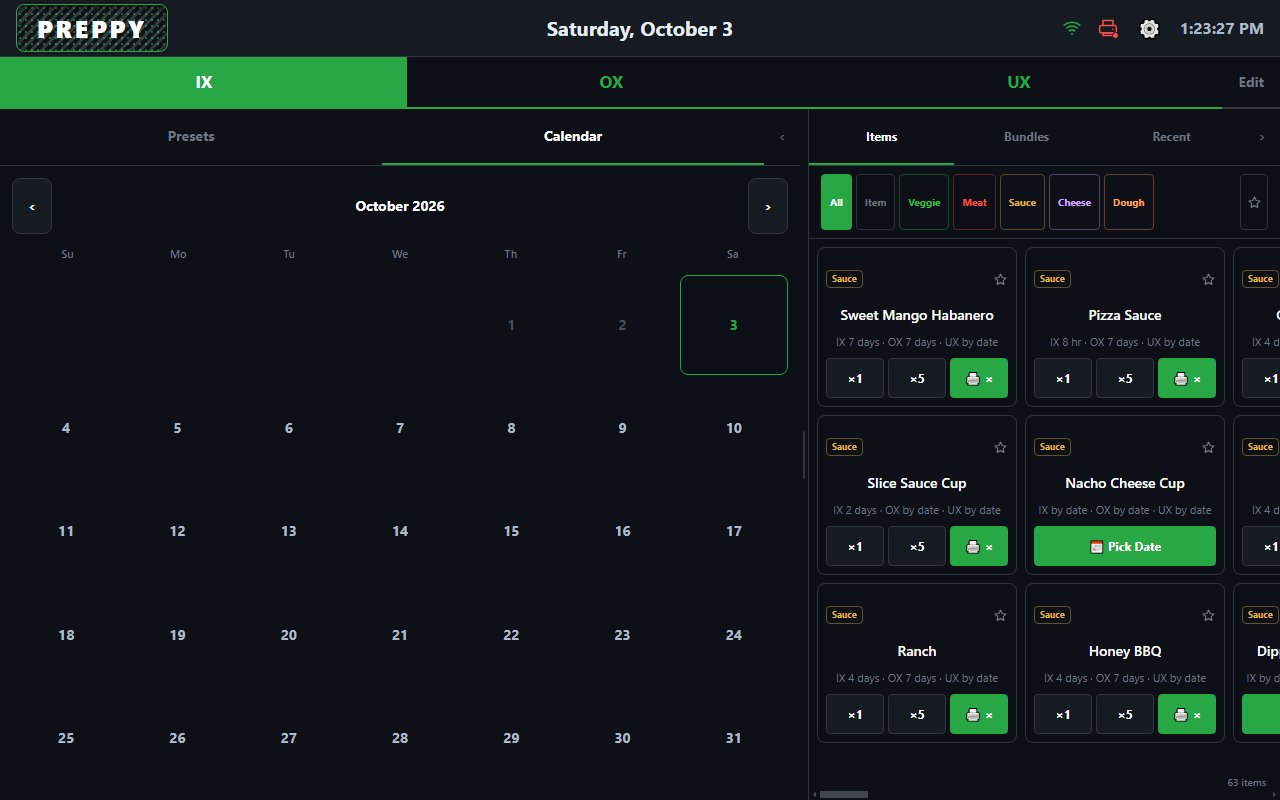
The default presets are 4, 8, and 12 hours, 1, 2, 3, 4, 7, 14, and 30 days, and End of Day, which prints a label that just says EOD. The Calendar tab next to Presets prints a label for any date you pick.
Quick items
Section titled “Quick items”The right-hand panel lists the store’s quick items, grouped by category with a filter row across the top. Each card names the item and its shelf life per template, and has ×1, ×5, and 🖨 × buttons. An item without a fixed shelf life shows Pick Date instead and opens the calendar. The star marks favourites.
The panel’s other tabs:
- Bundles. A bundle is a whole prep run on one button: several items with a quantity each, printed together. Set the quantities, tap Print, and the batch comes out.
- Recent. What was printed recently, with labels that expire today flagged at the top.
Edit mode
Section titled “Edit mode”Tap Edit at the right of the template bar.
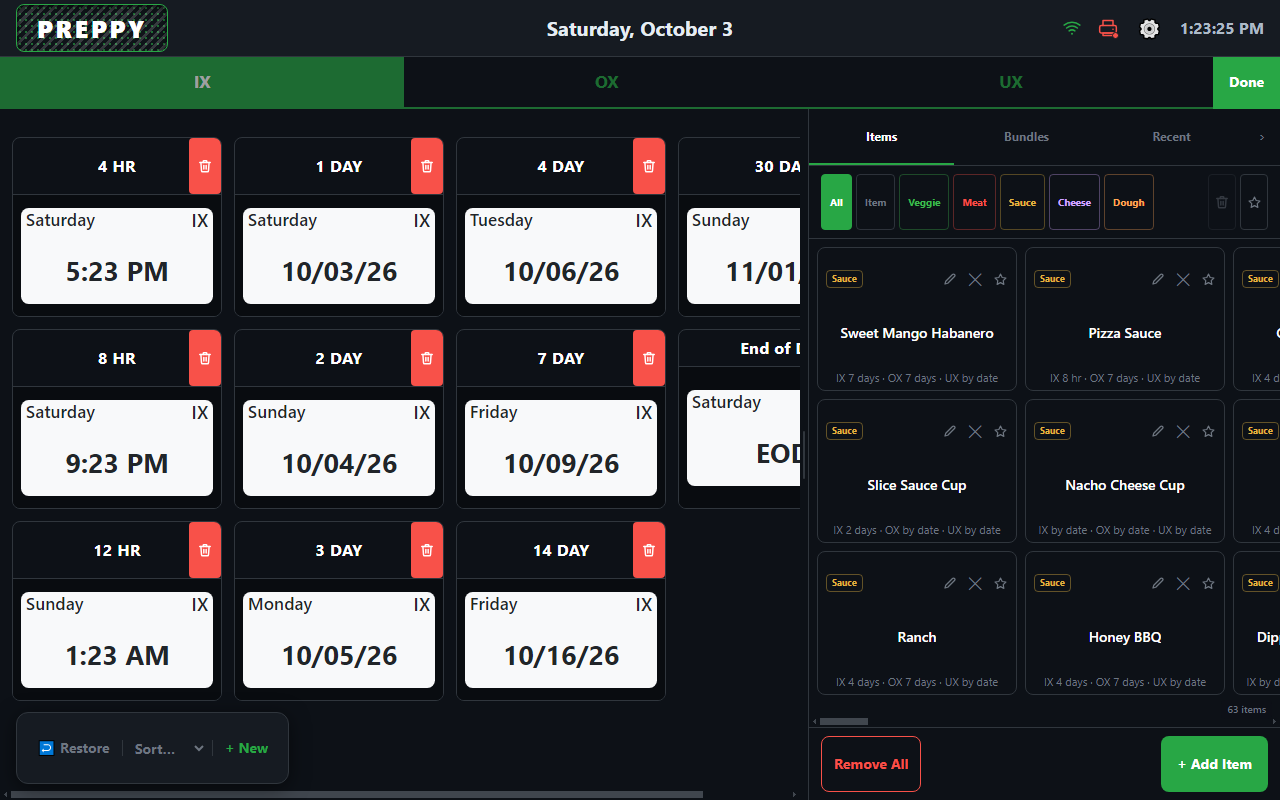
- Presets can be dragged to reorder, deleted with the red button, sorted (by time or by how often they are used), restored to the default set, or added with + New, which asks for a number of hours.
- Quick items get edit and remove buttons, plus + Add Item and Remove All.
- Edit mode ends by itself after thirty seconds without a touch, so a tablet left mid-edit goes back to printing.
On a paired tablet the lasting source of presets and items is the console. Edits made here survive until the next send from the console, which replaces them. Make permanent changes in the console.
Late at night
Section titled “Late at night”With day-first counting on (see date rules), labels printed after the cutoff hour count from tomorrow, because that prep is for tomorrow’s shift. The header says so: Past 11 PM · Printing for Sunday, with a Print for today button for the odd label that really is for tonight. That lasts until midnight, and the saved cutoff is not changed.
Printing feedback
Section titled “Printing feedback”Each print shows a short toast in a band under the presets while it runs, so the crew can see a batch counting down. Printer problems, such as a queue whose printer is unplugged, show as a plain hint there too.
When the tablet is locked
Section titled “When the tablet is locked”A tablet that cannot reach your PizzaBot account for thirty days, or whose store has the product switched off, locks to the essentials: presets and quick items still print, but editing is replaced by a card that says why and how to reconnect. Nothing is lost, and pairing or licensing it again unlocks everything.
After an update
Section titled “After an update”The first time Preppy opens after a nightly update it may show a What’s new card listing what changed, with a Got it button. It shows once.